How to Install and Activate Elev8+ on TradingView (Step-by-Step)
Elev8+ Indicators are invite-only scripts on TradingView. If you are new to invite-only indicators, this guide will walk you through installing the indicator, activating it on your charts, and configuring the core modules so the system looks and behaves the way it was designed.
What you need before you start
- An active Elev8+ subscription (Pro or Ultimate)
- Your TradingView username (Case Sensitive!)
- Recommended: Use a Desktop/Laptop for initial setup (it syncs to mobile later).
Step 1: Accept Your TradingView Invite
Once your subscription is active, access is granted to your TradingView username. Note: It can take up to 1-3 hours for TradingView servers to update permissions after you sign up.
- Open TradingView in a web browser
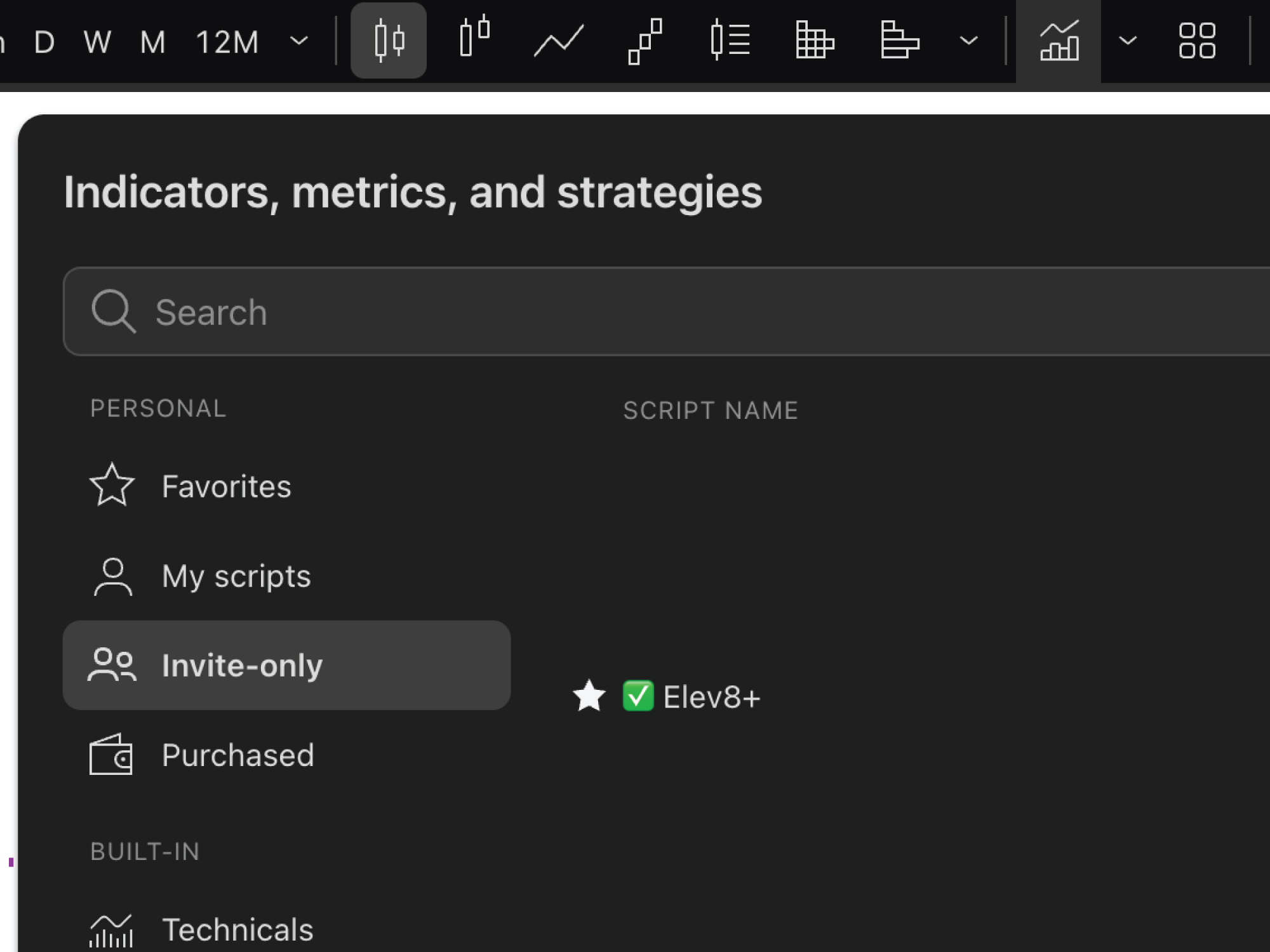
- Click the Indicators Tab (top right the the bar chart with line over it)
- Select Invite-Only Scripts (if you don't see this folder, refresh your page).
- Locate and click on each of the Elev8+ Indicators to add to your chart.
- Click the Star Icon to "Add to Favorites" (This is crucial for mobile access).
Step 2: Add Elev8+ Indicators to Any Chart
To attach Elev8+ Indicators to a chart:
- Open a new TradingView chart
- Click Indicators in the top menu
- Open Favorites (since you stared it in Step 1) or Invite-Only Scripts
- Click any of the Elev8+ Indicators ONCE to add on your current chart (clicking multiple times adds duplicates).
The indicators should load immediately. It can take a few seconds to load, that can be normal. Also some visual features are intentionally toggled off until you enable them in settings.
Step 3: Enable the Core Modules (The "Day 1" Config)
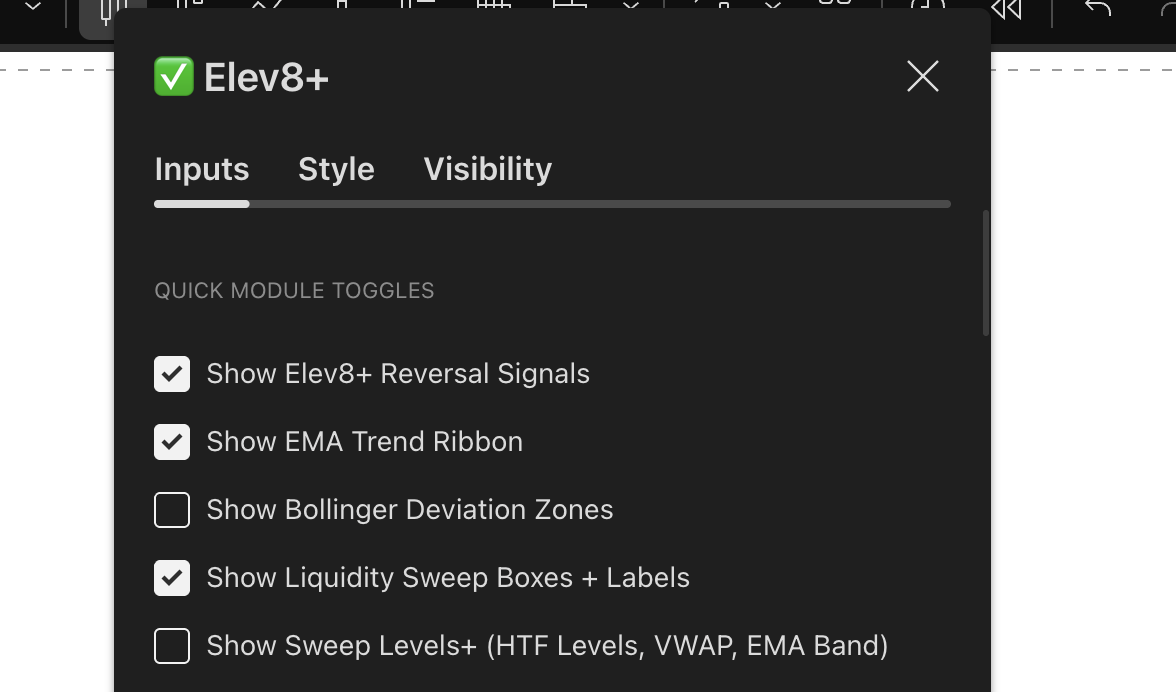
Elev8+ is modular. By default, we keep it clean. You only need to turn on the features you want and turn off any features that make your chart feel too cluttered. Open the indicator settings (hover over the indicator name on the chart and click the Gear icon).
- Signals: Check "Show Elev8+ Reversal Signals" & "Show Liquidity Sweep Boxes + Labels"
- Levels: Check "Show Sweep Levels+" or use Market Map for cleaner levels.
- Sweep Levels: Check "Show PDH/PDL" (Previous Day High/Low) and "Show London & Asia H/L"
- Leave everything else UNCHECKED for now.
Why? If you turn everything on at once, your chart can look very busy until you get comfortable. Start simple.
Step 4: Reduce Chart Clutter (Crucial Step)
If your chart looks messy, it's usually because "Historical Levels" or "15m Pivots" are enabled on a low timeframe chart.
- Hide Monthly/Weekly levels if you are day trading (M5/M1 charts).
- Hide "Past Broken Levels" if you only care about live price action.
- Hide "Bollinger Zones" unless you specifically trade volatility mean reversion.
Step 5: Confirm Real-Time Behavior
Elev8+ is designed around confirmed behavior on bar close. When a triangle or LS appears at a wick extreme:
- The bar has closed
- The sweep has completed
- The rejection is confirmed
Troubleshooting: "Access Denied" & Common Errors
Problem: "You do not have permission to access this script"
This is the most common TradingView error. It usually means:
- Wait Time: You just signed up 5 minutes ago. (Solution: Wait 30 mins and refresh).
- Wrong Username: You provided "User123" but your actual ID is "user123". (Solution: Email support).
- Cache Issue: Your browser "remembers" you didn't have access. (Solution: Log out of TradingView and log back in).
Problem: "Study Error" or Red Exclamation Mark
This happens when TradingView updates its backend.
- Solution: Click the "X" to remove Elev8+ from your chart, refresh the page, and add it back again.
Problem: "I don't see it on my Phone App"
- Solution: You must add it to "Favorites" on Desktop first (Step 1). Then, restart your mobile app, and it will appear in your Favorites folder.
Conclusion
Installing Elev8+ takes only a few minutes. The system is modular, flexible, and designed to help you trade after liquidity sweeps — not during them. Once your chart is set up and simplified to the levels you actually trade, Elev8+ becomes a clear, structured roadmap of institutional liquidity.