How to Create Elev8 TradingView Alerts for Sweep Reversals
Elev8 sweep reversals can be monitored automatically using TradingView alerts. Instead of staring at your chart all day, alerts notify you when your highest-value conditions appear.
The "Doorbell" Analogy 🔔
Think of an alert as a Doorbell. It tells you someone is there.
It does NOT mean "Open the door immediately."
You still have to look through the peephole (check the chart for a major level) before you let them in (enter the trade).
Step 1: Open the Alert Menu
To create an alert:
- Click the Alerts icon on the right toolbar (the alarm clock), or
- Right-click anywhere on your chart and select Create Alert.
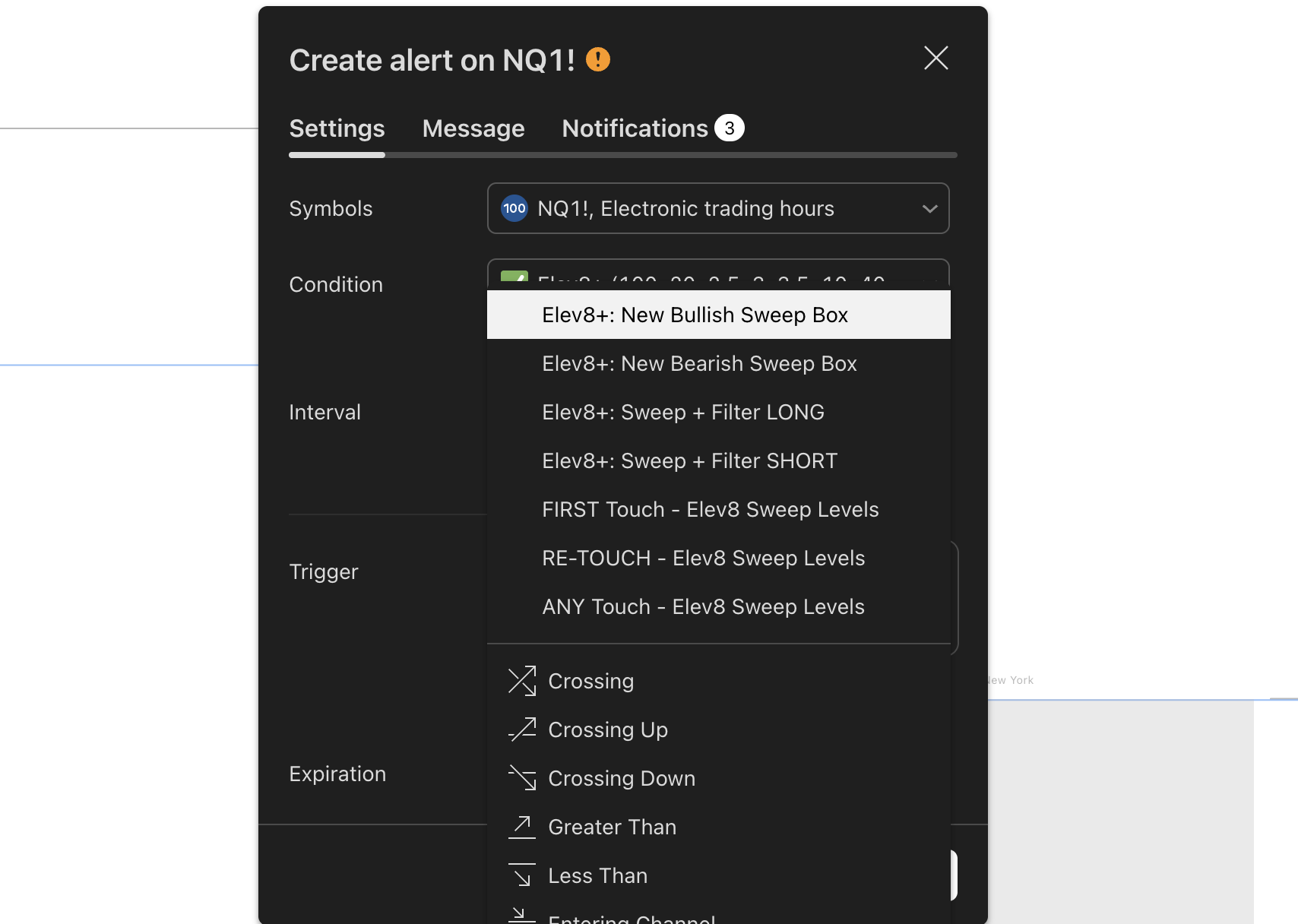
Step 2: Select the Elev8 Condition
In the alert popup:
- Under the Condition dropdown, select Elev8+ (do not select "NQ1!" or the ticker name).
Once selected, a secondary dropdown will appear. This is where you pick what to be alerted on.
Step 3: Choose Your Signal Type (The "Day 1" Stack)
You have many options, but we recommend starting with this specific setup to avoid "Alert Fatigue."
Best for: Traders who want fewer, higher-quality notifications.
- Select "LS Bullish" or "LS Bearish" from the list.
- This will only ping you when a premium, confirmed sweep occurs.
Warning: Triangles are frequent. If you set this on a 1-minute chart, your phone will not stop buzzing. Only use this on higher timeframes (5m, 15m) or if you are actively scalping.
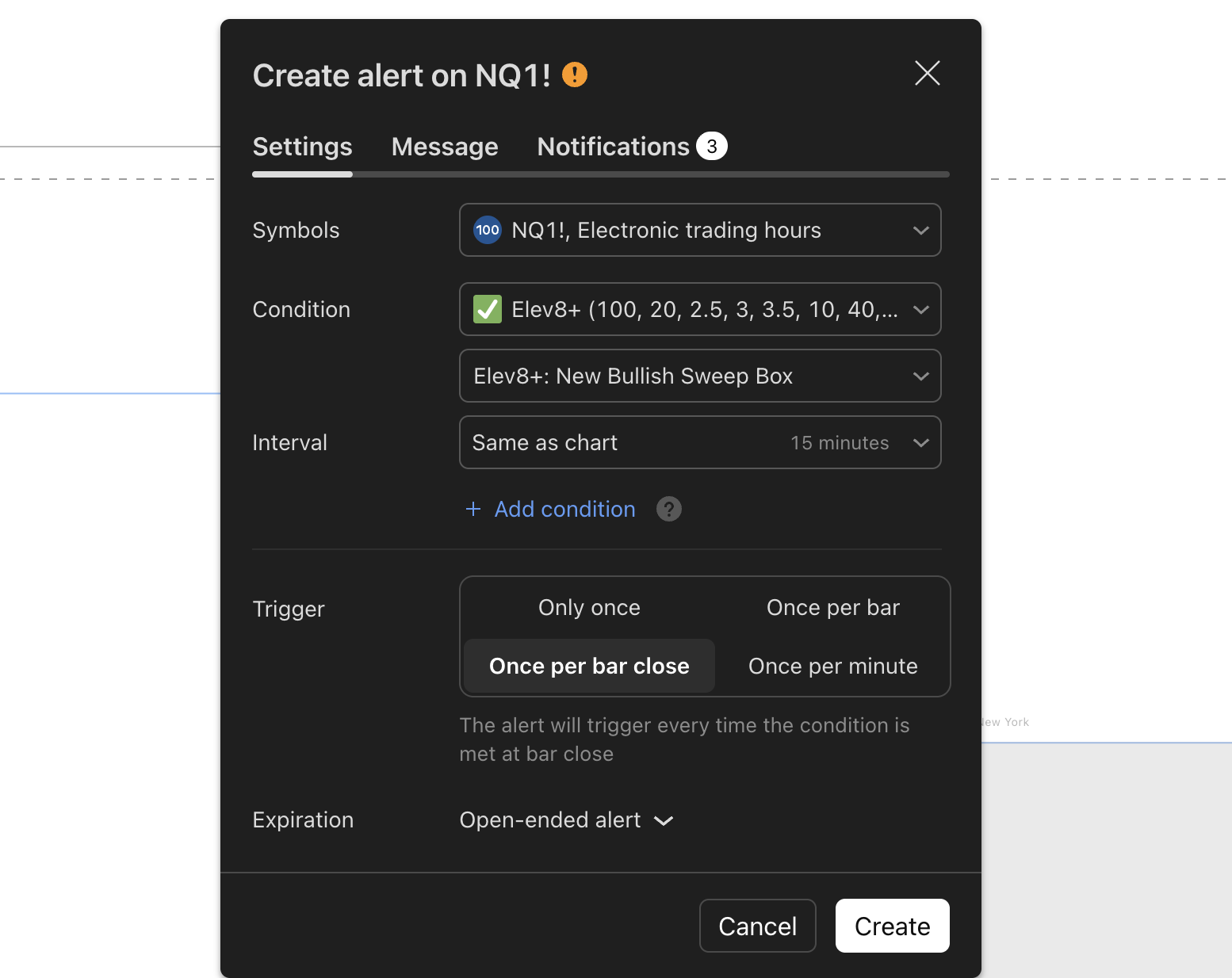
Step 4: Set Alert Frequency (Crucial Step)
You must select: "Once Per Bar Close"
Why "Once Per Bar Close"?
Elev8 signals can appear and disappear during the life of a candle (repainting) as the wick forms.
By selecting Once Per Bar Close, the alert will only fire if the signal is locked in and permanent.
Never use "Once Per Bar" (without close) unless you want false alarms.
Step 5: Choose Delivery Method
TradingView supports multiple alert delivery options:
- App notifications: Best for execution. Make sure you have the TradingView app installed on your phone.
- Popup: Best if you are already at your desk but looking at another tab.
- Email: Too slow for day trading. Use this only for daily timeframe alerts.
Step 6: Write Your Alert Message (Make it Actionable)
Don't just leave the default message. Write something that tells you what to do.
Copy/Paste This Template
"Elev8 LS Signal on {{ticker}} ({{interval}}). CHECK THE LEVEL. Is it at PDH/PDL? If yes, look for entry."
Troubleshooting: "My Alert Didn't Fire!"
- Did the candle close? If you set "Once Per Bar Close," the alert won't fire until the candle is finished.
- Is the alert stopped? TradingView alerts sometimes stop automatically after they trigger once (unless you select "Open-ended" on Premium plans). Check your alert log.
- Are notifications on? Check your phone settings to ensure TradingView has permission to send push notifications.
Summary
- Signal: LS Premium (Bull/Bear).
- Timeframe: 5 Minute Chart (reduces noise).
- Frequency: Once Per Bar Close (guarantees confirmation).
- Action: When it rings, check if price is at a Major Level before trading.
With this setup, Elev8 reduces screen fatigue while keeping you focused on the most actionable reversal environments. You are not trading alerts — you are using alerts to arrive at the right place with a clear plan.