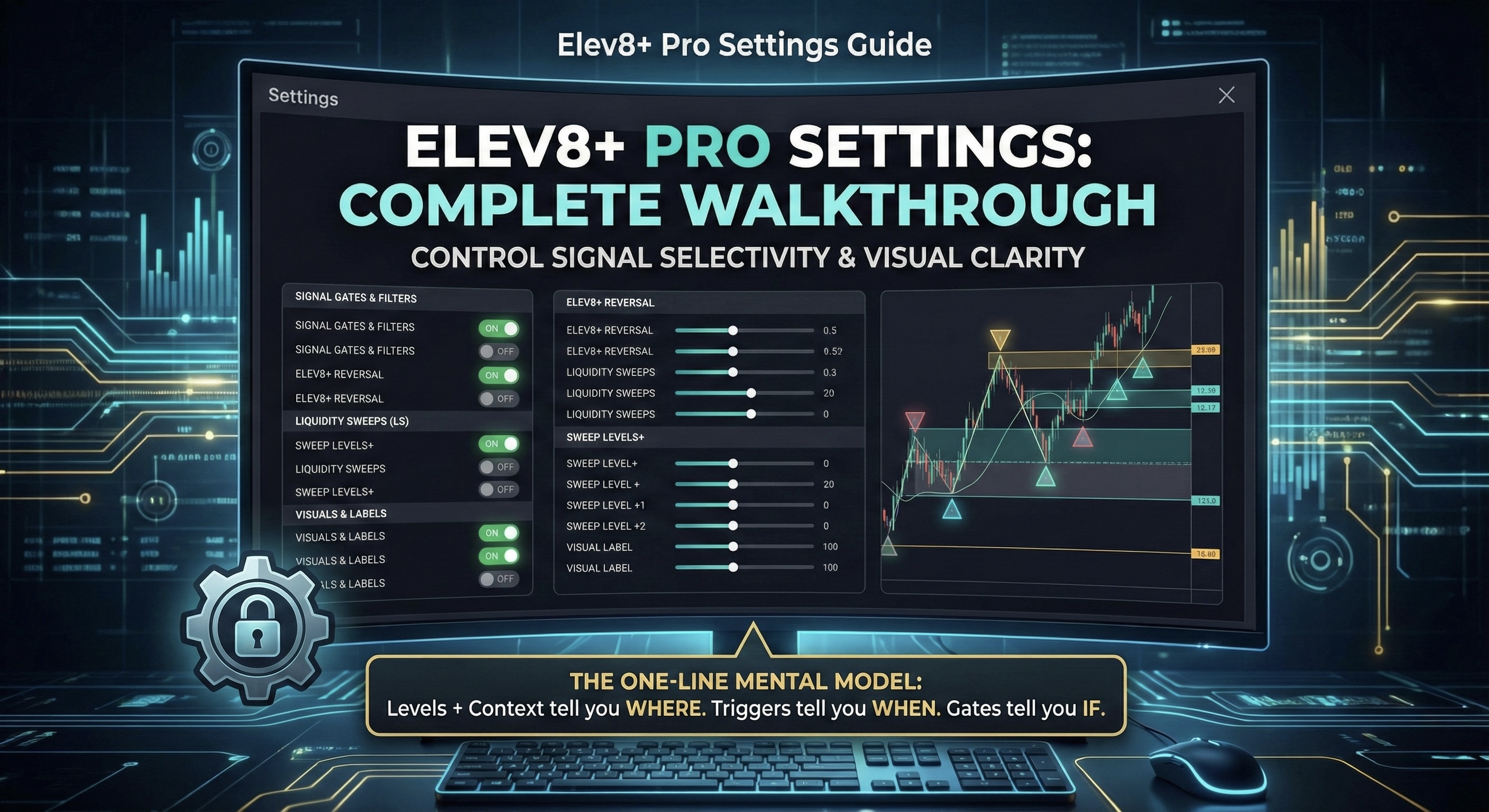
Elev8+ Pro Settings Guide (Complete Walkthrough)
This guide breaks down every major setting inside Elev8+ Pro and explains how to toggle, filter, and fine-tune the indicator for your personal style—without needing to be technical. Nothing here is a guarantee of results. Think of these tools as ways to control signal selectivity and visual clarity.
The One-Line Mental Model
Levels + Context (Sweep Levels+, Deviation Zones) tell you where we are.
Triggers (Elev8 triangles + LS sweeps) tell you when something may be rotating.
Gates tell you if a trigger is “clean enough” to print.
Quick Navigation
- How to open settings + how toggles work
- Modules (what each feature does)
- Signal Gates & Filters (reduce noise)
- Elev8+ Reversal (triangles)
- Deviation Zones (fill-only BB)
- Liquidity Sweeps (LS)
- Sweep Levels+ (key levels)
- Visuals, labels, and chart cleanliness
- Alerts (how to set them correctly)
- Recommended presets
- FAQ & troubleshooting
How to Open Settings + How Toggles Work
Open your chart → click the Elev8+ Pro name → click the Settings (⚙️) icon. Nearly everything is under Inputs. The Style tab is intentionally minimal.
A Gate does not change Elev8’s core signal logic. It simply decides if the signal is allowed to print on the chart. Turning gates on = fewer signals, typically cleaner.
Modules (What Each Feature Does)
Elev8+ Pro is modular. If your chart looks busy, start by disabling modules you don’t need.
- Elev8+ Reversal Signals — Triangles for reversal ideas.
- Liquidity Sweeps (LS) — Sweep labels + forward-extending sweep zones.
- Sweep Levels+ — Key reference levels (PDH/PDL, sessions, weekly/monthly/quarterly/yearly, VWAP, etc.).
- Deviation Zones — Fill-only extension context (no BB lines).
- EMA Clouds — Optional visual “clouds” for trend/structure context.
Recommended workflow
Use Sweep Levels+ as your map, Deviation Zones as your “stretch gauge,” and Elev8 triangles / LS sweeps as your triggers.
Signal Gates & Filters (How to Reduce Noise)
If you see false signals during strong trends, don’t delete your triggers—add selectivity using gates. The goal is to preserve strong “exhaustion-style” rotations while filtering the mid-trend noise.
This is the main “quality gate.” When ON, a signal must be validated by Sweep and/or CVD divergence. Turning this on typically produces fewer signals.
- Gate On/Off: Enables confirmation gating.
- Mode:
- Either — Requires Sweep OR CVD Divergence.
- Both — Requires Sweep AND CVD Divergence (most selective).
- Sweep Only — Requires sweep confirmation only.
- CVD Only — Requires CVD divergence only.
Universal safety: CVD uses an Auto Real CVD → Proxy fallback. If your symbol doesn’t support Real CVD, it falls back automatically. If volume isn’t usable, the gate behaves like Sweep-only instead of breaking.
Trend Guard reduces countertrend triangles in strong trends. It blocks low-quality countertrend prints unless exhaustion is present.
- Enable Trend Guard — Turns the filter on.
- Trend Strength — Typically ADX/EMA-based thresholds. Higher = fewer blocks (less strict).
- Direction Aware — In an uptrend it’s stricter on sells; in a downtrend it’s stricter on buys.
This is the “safety valve.” If Trend Guard would block a countertrend reversal, Exhaustion Override can allow it when price is stretched and confirmation is strong.
- Enable Exhaustion Override
- Exhaustion Triggers — Examples include sweep/CVD confirmation, extension away from anchors, or volatility stretch.
Filters out signals that occur too close to “mid-range” anchors (common chop zone). This reduces random triangles when price is not at an extreme.
- Enable Avoid Middle
- Anchor — EMA/VWAP-based depending on your configuration.
- Distance Threshold — ATR-style distance. Higher = fewer signals.
Elev8+ Reversal (Triangles)
This is the core reversal triangle system. If you are new, keep defaults and only adjust one thing at a time.
- Enable Elev8+ Reversal — Shows the primary triangle signals.
- Enable DI Filter (Advanced) — Adds a stricter confirmation layer (fewer signals).
- ADX Filter — Helps avoid weak/choppy periods.
- Momentum / RSI Filters — Helps confirm reversal conditions.
- Band / Volatility Logic — Encourages signals closer to stretched conditions.
Rule of thumb
If you want fewer signals, increase thresholds or length values. If you want more signals, decrease thresholds slightly.
Deviation Zones (Fill-Only BB Context)
Deviation Zones provide mean-reversion and extension context using fill-only visuals. We removed BB line inputs on purpose to keep charts clean.
- Show Deviation Zones — On/off.
- Deviation Multiplier / Strength — Higher = only more extreme zones show.
- Opacity — Visual preference only.
Liquidity Sweeps (LS)
LS identifies sweep behavior (liquidity grabs) and can draw forward-extending zones to visualize the sweep area. It’s best used as confirmation and context.
- Enable LS Module — Shows LS labels and zones.
- Sweep Sensitivity — Stricter settings reduce LS prints.
- Zone Extension — Controls how far the sweep zone extends forward.
Sweep zones extend forward while keeping the sweep candle wick visually normal—no extra wick highlight inside the box.
- LS Label Color (Long)
- LS Label Color (Short)
- Sweep Zone Fill
Sweep Levels+ (Key Levels)
Sweep Levels+ plots the most important reference levels traders watch. To keep Settings clean, each level type uses one color that applies to both high and low where relevant.
- Show Text Labels — On/off.
- Text Label Color — One shared label color for all Sweep Levels text.
- Show PDH/PDL — Previous day high/low.
- PDH/PDL Color — One color applies to both PDH and PDL.
Includes common session highs/lows (Asia, London, NY) depending on your configuration.
Each timeframe has a single color option that applies to both high and low to reduce Settings clutter.
If levels continue after a session closes, the default opacity is 70 for readability.
Renamed from EMA Bands. Clouds are visual context tools and do not automatically equal a trade signal.
Visuals, Labels, and Chart Cleanliness
Visual settings change how the indicator looks—not what it detects. If your chart feels busy, simplify first.
- Turn off Sweep Levels text labels.
- Lower Deviation Zone opacity.
- Disable modules you don’t use.
Alerts (No Toggles Required)
Alerts do not require “Enable Alerts” switches. TradingView alerts only fire when you create one.
- Click the Alerts (clock) icon.
- Select Elev8+ Pro as the condition source.
- Choose the condition (Buy/Sell, LS sweep event, etc.).
- Select delivery (popup, app, email, webhook) and create it.
Recommended Presets
- Gate: OFF (or Mode = Either for fewer signals)
- Trend Guard: ON
- Exhaustion Override: ON
- Avoid Middle: ON (moderate)
- Gate: ON (Mode = Either or Both)
- Trend Guard: ON (stricter)
- Exhaustion Override: ON
- Avoid Middle: ON (higher threshold)
- Gate: OFF
- Trend Guard: OFF
- Exhaustion Override: OFF
- Avoid Middle: OFF
FAQ & Troubleshooting
Reversal detection is naturally noisier in strong trends. Use Trend Guard + Avoid Middle. For even fewer signals, turn on the CVD/Sweep Gate in Either mode.
Some FX feeds do not provide the same volume delta. Elev8+ Pro uses Auto fallback so it stays stable across symbols. If Real CVD isn’t supported, it falls back automatically and still uses sweep confirmation when available.
- Turn off Sweep Levels text labels.
- Lower Deviation Zone opacity.
- Disable modules you aren’t actively using.
Best practice: Start with the Balanced preset, then change only one filter at a time and observe how it affects signal count and quality over a few sessions.